|
 Pocket GPS POI-Sync is a new service from the
Pocket GPS Team. Pocket GPS POI-Sync is a new service from the
Pocket GPS Team.
This incorporates all of the POI's listed at Pocket GPS,
categorised into country sets, which you can download and sync to your Pocket PC
in the desktop cradle whilst you're online.
Pocket GPS POI-Sync will work
with GPSAssist, POI-Warner, CheckPOInt and many more add-on POI programs using a
desktop application called POI-Edit.
*** Experiencing Connection Problems with POI-Edit ? ***
Click here and follow the configuration in our FAQ Page.
Download POI-Edit
To start you need to download POI-Edit which is a
PC based application. We've decided to provide a direct link to the author
as it's easier for him to update and maintain. To download, goto the
following URL http://www.dnote.nl/pda/poi/PoiEdit/ and select the Download link just under
the screenshot.
Installing POI-Edit
Install POI-Edit by running the downloaded
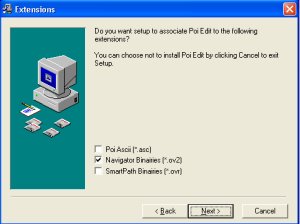
program. Install to the default location. When you are prompted on
install to select the extension types (as below in the first screenshot), just
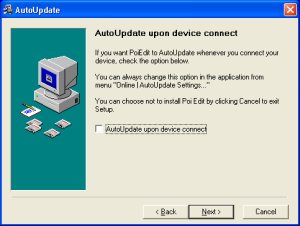
select Navigator Binaries (*.ov2), and then click NEXT. When you
get to the next screen that says AutoUpdate upon device connect uncheck
the AutoUpdate box. The reason for this is our POI's do not update
on a very frequent (eg daily) basis, but usually on a monthly basis, so if you
do check this box, all you'll keep receiving is a dialog at the end of syncing
your Pocket PC saying no updates which can get a little frustrating and it also
puts a load on our server.

Once finished, you should now have a program group
on your PC called POI Edit. In there will be a TomTom Poi Editor.
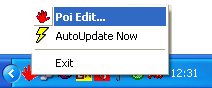
If you click the icon to run POI-Edit this will then run in your task tray like
this.
Now what we need to do is to run POI Edit by right
clicking on the icon in your task tray, then select Poi Edit.
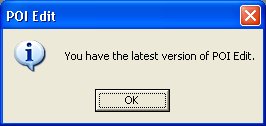
When running POI Edit it will run a check back to
the POI Edit web server to see if there is a new version there. If there
is, it will attempt to download it. If not, you will see a screenshot like
this.
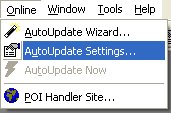
Now that POI Edit is running, click Online
from the menu and then AutoUpdate Settings. What we first need to
do is setup POI Edit. This will open another screen. This screen
will eventually show all the POI's that you are syncing to your Pocket PC.
Firstly make sure you check the Download Images
box but uncheck the AutoUpdate upon device connect. The reason for this is
the Sync process can take quite a length of time even on broadband or ADSL
connections because it has to go off and download a complete database of
POI's, and then manually check against each one to see if there is an update,
so if
you take your Pocket PC out of it's cradle and re-dock it 5 times a day, then
this process will run 5 times daily which will eventually get a bit annoying due
to the speed of the sync.
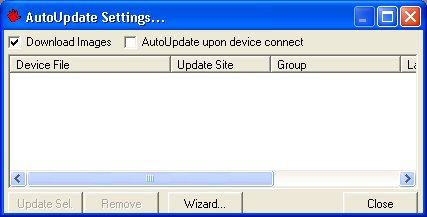
Now the settings are complete, you need to run the
Wizard and this will connect you to the Pocket GPS POI-Sync Server.
When the wizard screen pops up select Next, and you'll see a website URL
screen. Enter http://www.pocketgpsworld.com/poisync/pocketgps.xml in the supplied URL (top
box) like below.
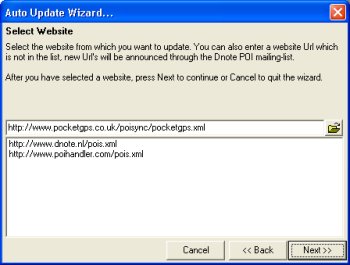
Now click NEXT, and POI Edit will go away
talking to the Pocket GPS POI-Sync web server. Once complete, you should
see a list of POI's in a screen like below. The first pull down box is the
country set. You can change this to different countries as all of our
POI's are country coded. Once you have selected the correct country set,
tick the boxes to the left of each POI. If you want to see a description,
just click on the name of the POI and it will show you in the status bar above
the buttons (eg Select All).
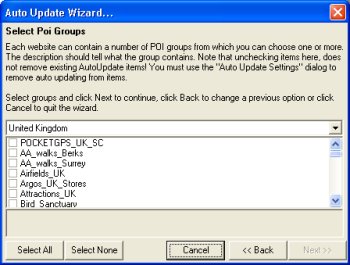
Once you have selected all the POI's you want to
download, make sure the Pocket PC is in your cradle, and you have a valid
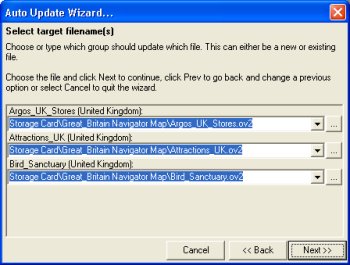
ActiveSync session open. Now click NEXT and you'll see a screen like
below. POI Edit should have detected where your country set data for
TomTom Navigator 1 or 2 is located. If this is incorrect, you may need to
change it, providing you only have one country set on your Pocket PC, it should
choose the correct location. When you are happy with the locations and
that they are pointing to the correct country directory for the country you have
selected for POI's, click NEXT.
blah
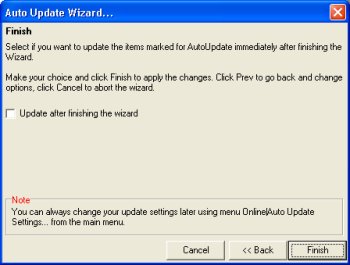
One final screen now before the initial sync
continues. If you have your Pocket PC docked, then tick the Update after
finishing the wizard check box. This will then sync the POI's to your
Pocket PC after download.
Now the POI's should start downloading and
synching to your Pocket PC. When completed click CLOSE to send POI Edit
back to the task tray.
How do I download updated POI's in the future ?
In future updates providing POI Edit is in the task
tray, just right click and select AutoUpdate Now and it will run the
update process.
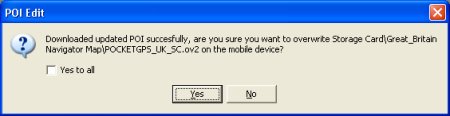
If there are any updated POI's you'll see a screen
like the one below. If you answer YES, it will download and overwrite the
POI with the newer version, if you select no, it will cancel.
Known Problems
If you believe there should be some updated POI's
on the Pocket GPS POI-Sync server because we've announced them on our news page
but you're not seeing them, it's because POI Edit caches the server list.
If this happens (and it's usually because you haven't logged out or switched
your machine off for a while, but put it into hibernate), then just exit POI
Edit in the task tray and re-run POI Edit and it will download a new index list
from our server.
If you experience any problems, send them to
dave@pocketgpsworld.com
Frequently Asked Questions
Q. If I add entries to one of the POI's I've
downloaded, will it upload it back to the server ?
A. No. The reason for this is, you could
overwrite the a recent POI that has been uploaded, so you do have to email us an
updated POI file. What we would suggest is you save the POI as a different
name, so if you have Castles.ov2, then call it Castles2.ov2 and
email us the updated file.
Q. If I sync the Speed Camera Database, or any
POI's I want to be notified of, do I have to do anything else ?
A. Possibly. It depends on the add-on
utility you use on the Pocket PC. GPSAssist has it's own seperate database
so it can detect changes to the database. If applications have this, then
you may also have to sync within the application like GPSAssist to keep both the
OV2 and the POI Alert notification program up to date.
Q. Can I ask POI Edit to sync every time I dock my
Pocket PC ?
A. You can, but there really is no point to it.
If you dock your Pocket PC 5 times a day, you will need to download and sync 5
times a day and also answer quite a few dialog boxes that pop up. What we
recommend is you watch our news page, we'll update you when there are updates,
and then just select the Update Now option in POI Edit and it saves you having
to manually download the POI files.
Troubleshooting
If you are still experiencing problems connecting,
check out our FAQ
Database for assistance.
|