Table of Contents
|
|
Review by Lutz Bendlin
Introduction
If you follow this site closely you know that we are always looking for applications that expand the reach of GPS navigation, both from a map coverage point of view as well as what is considered to be usability and feature richness. Well, PaPaGO is a very interesting addition to the race. Mostly because it is the first application that has a very decent coverage of Asia and South Africa, but also for some of its special features.
top
Coverage
Very interesting indeed is the geographical reach that is offered. It also includes regions in the world that were white spots no too long ago – at least in Pocket GPS terms.
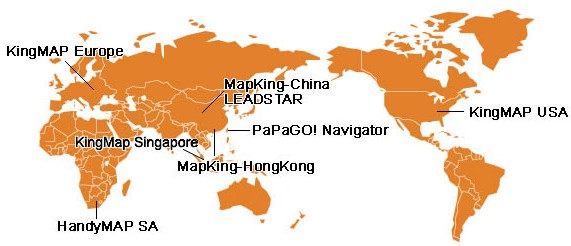
As you can see the coverage includes Western Europe, South Africa, Singapore, Hong Kong, Mainland China, Taiwan, and the US. The coverage in Asia is most impressive.
You probably also noticed the variety of names for the product – this is partially due to the fact that the 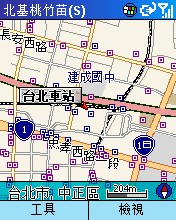 company is in the middle of renaming the product from "KingMap" to "PaPaGO" (whatever that means), but on the other side there are also a number of OEMs that distribute the application under a different name. company is in the middle of renaming the product from "KingMap" to "PaPaGO" (whatever that means), but on the other side there are also a number of OEMs that distribute the application under a different name.
Maction do also produce car navigation systems for a variety of car manufacturers and target countries.
I found it quite interesting to see the South African HandyMap being part of the family. PaPaGO/Maction itself is based in Taiwan.
top
Devices
PapaGo were kind enough to supply PocketGPSWorld.com with a review copy of PaPaGO v5 Navigator for the Pocket PC, so that is what we will be reviewing here. The newer version 7 is not yet available in english, we will review it later.
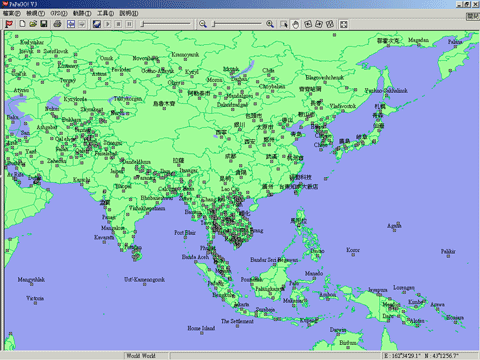
PaPaGO is also available for PC and Microsoft Smartphones, as you can see from these screenshots:
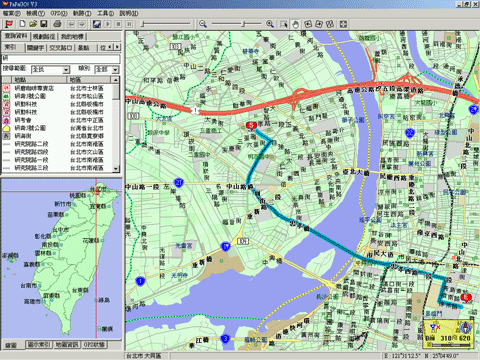
Even if you don't speak Mandarin fluently, it is always worth to visit the PaPaGO website (they also have an English section). Not just for the map downloads (yes, all maps can be downloaded directly from the site!) but also for the funny advertisement (well, it looks funny, not sure what is says).

So, let's get started and see how good PaPaGO can perform against the established competition.
top
Installation
Confusion doesn't stop with the application name. Also the versioning is very wild, jumping from KingMap 2 to MapKing 5 to PaPaGO v5.0. (Don't worry; it is all the same application anyhow). The URLs are also manifold. For what it's worth, http://www.matlastech.com/mk5/download.htm seems to be a good starting point. (Yes, PaPaGO is somehow related to Maction Technologies, as well as to MatlasTech and Mobuy etc).
Anyhow, the URL above also has a link for the US, so let's start there. The program is available for free. Make sure you also download the User Guide. Maps (one per state) can be downloaded and used for three days. After that time the registration gets enforced, so if you like it then you have to buy the maps.
US state maps cost 980 TWD each (the site for whatever reason states "NTD"). That's about 30 USD per state, or 16 GBP. European maps (one per country or per region - think "Iberia") are much more expensive, and come in at 65 GBP. Then again the interesting part is not necessarily the US or Europe coverage but rather the AP/ZA coverage.
Now, you downloaded your application and the demo map (in a zip file, but still pretty big – make sure you have a broadband connection handy). What's next?
Application Installation
Here we go again, it's time for the "World Domination Test" How well does PaPaGO behave when I tell it to install not to the default location, but to the Storage Card?
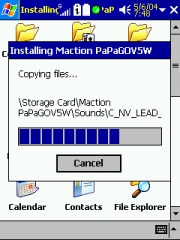 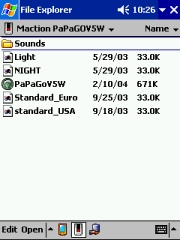
 All is well with PaPaGO – it installs nicely to my desired location, no veering off – a big thumbs up for that! By the way, there are a whopping 81 WAV files in the Sounds folder, recorded in a very nice voice. But more about that later. All is well with PaPaGO – it installs nicely to my desired location, no veering off – a big thumbs up for that! By the way, there are a whopping 81 WAV files in the Sounds folder, recorded in a very nice voice. But more about that later.
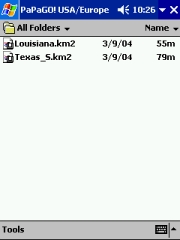
The maps are downloaded as ZIP files, and you then have to manually extract them onto the storage card – the use of a card reader is highly recommended. The user guide says that the maps need to be copied to the "\My Documents" folder either in main memory or on the storage card, but I found that that's not necessary – you can place them anywhere you want.
As you can see the maps are roughly double the size of what other programs normally use.
TomTom's map of Southern Texas is around 31 MB. I was not able to find a good reason for the increased map size, but it surely means you need to take that into account when you juggle around the storage card space.
Fine Tuning
Let's have a walk through the config options. Some of them are very interesting.
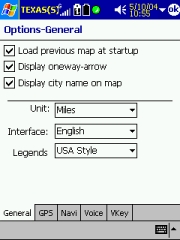
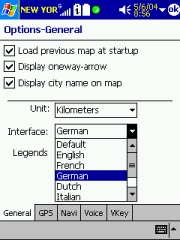
In the General tab you can set the units of measure and decide to reload the same map. (I could not test routing across maps because I had only a license for the South of Texas).
You can also set the application language and the way the legends should appear.
 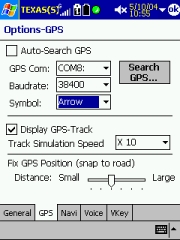 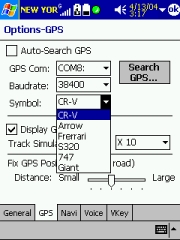
In the GPS tab you specify the receiver. Auto-Search does work somehow, but takes very long to iterate through the ports and speeds. Better set it manual. PaPaGO expects NMEA sequences and doesn't support the SiRF protocol. Not a problem if you ask me.
You can select the symbol for the GPS position. The Ferrari actually looks more like a toy car… The GPS position is fixed to the middle of the screen, there is no option to optimise the display by moving the GPS position further down.
Note the Snap to Road feature – you can actually influence how rigid this should be handled. If you see the program select a neighbouring road all the time you may want to set this a tad tighter, towards the "Small" area.
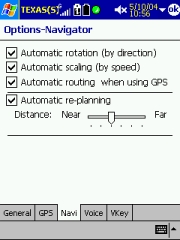 The Navigator tab has the map rotation settings (you can actually set the view to North Up, even in Navigation mode! Not sure I would want to do that, but we keep getting these requests in our forum.) The Navigator tab has the map rotation settings (you can actually set the view to North Up, even in Navigation mode! Not sure I would want to do that, but we keep getting these requests in our forum.)
Automatic scaling is a beautiful thing – it will zoom into intersections when you slow down, and zoom out to bigger map areas if you go faster again.
Automatic Routing when using GPS - When this is checked all you need to start the routing is to set an end point.
Automatic Re-Planning – this is for recalculation of the route when you veered off the track. Set it to the very left, and it will reroute when you are off track more than 90 feet. The route recalculation is a bit slow though, with lots of voice accusations ("Attention! Deviation from planned route!") and excuses ("Recalculating route. Please wait a moment."). Unless you stop immediately (don't do that on the motorway) by the time the recalculation is ready you are already somewhere else, so it has to recalculate again etc.
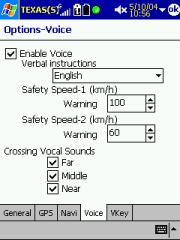 Voice instructions can be configured here – note that this is the only place where you can actually silence the chatty lady (short of quitting the application). You can also select to use beeps only but then this forces you to watch the screen all the time a beep sounds, and that somehow defeats the purpose of a navigation system. Voice instructions can be configured here – note that this is the only place where you can actually silence the chatty lady (short of quitting the application). You can also select to use beeps only but then this forces you to watch the screen all the time a beep sounds, and that somehow defeats the purpose of a navigation system.
The Safety speed warnings are a nice idea – until you have been hit with their whole power because you dared to drive 61 km/h. A very pleasant but restless voice will repeat "Please drive carefully and observe the speed limit" until she has you cooked or beaten up by your co-pilot. So make sure you set these limits a tad higher.
Crossing vocal sounds allows you to fine tune how often you want to be reminded about an upcoming action. In the US, Far equals 1600 feet, Middle 1000 feet, and Near about 400 feet.
In addition to that the voice will say "At the Intersection" when you have passed the last opportunity for a wrong turn. Other programs just say "turn right" and may confuse you when there are multiple options to turn right, but PaPaGO actually waits until it is safe to tell you. I think this is very smart.
 
The Vkey feature is basically a clever way to extend the concept of hardware buttons to the screen. In addition to the existing hardware keys Vkey puts a 3x3 grid onto the screen (identified by small yellow lines - have a closer look at the second image) and you can assign functions to these areas as you normally can do to the hardware buttons.
Now, 13 buttons is quite a lot to remember. I ended up printing out a cheat sheet of the functions I selected…
top
Exploring the Application
On start-up the application will ask you which map to open, and then remind you to do the registration dance. But thankfully you can try the app out for three days. After that you have to note down the owner's name of the PDA (that's what the registration is based on) and go to the registration web site at http://www.mmcode.com where you enter the product code (one per map)
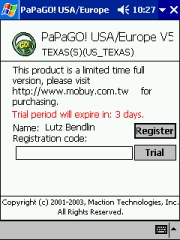 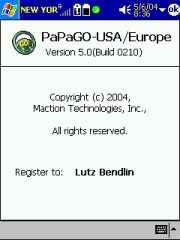 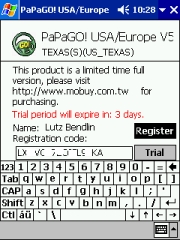
Starting the Program - Language Settings
As you can see there is one program version covering the latin fonts (and another one for the Chinese characters).
The maps can be loaded into either of them, but obviously you have to expect some font mismatch when you load a chinese map into a latin operating system. The routing works, though.
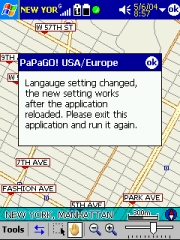
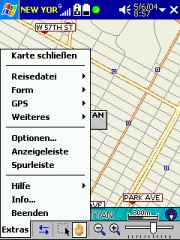
You can select from an impressive list of languages, and after a restart the User Interface is available in your selected language.
From what I can judge the translations are done very nicely with only occasional typos (like the one in the second picture)
Toolbars
There are three toolbars available, and getting used to them takes some time.
 The main toolbar has shortcuts to most of the menu functions. If you are unsure about what a particular button does you can tap and hold it and a short explanation will appear. The main toolbar has shortcuts to most of the menu functions. If you are unsure about what a particular button does you can tap and hold it and a short explanation will appear.
The one thing I was missing is the ability to switch the voice commands off quickly – there you have to go through the options menu.
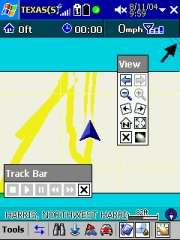
The other toolbars can be enabled and disabled from the Tools menu. The View Bar gives access to map manipulation, and the Track bar allows to start and stop the simulation or replay a recorded track.
GPS Status Screen
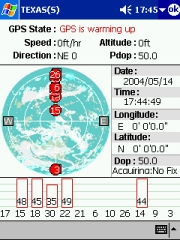
The GPS status screen shows the usual information and allows you to see if the receiver is working well. The Longitude/Latitude format is fixed to D'M'S.xx
Map Information
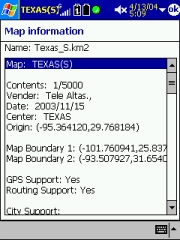 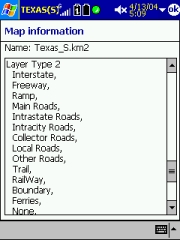
The map information (Tools > Help > Map Info) is very detailed, showing you the vendor details, the map boundaries, but also the map attributes that are included in the current map. An interesting insight into the map compilation magic…
Legends
And lastly, if you want to know what all the symbols on the map mean you can go to Tools > Help > Legends . This will list all symbols together with an explanation, pretty much like a legend on a paper map.
Style Selection
PaPaGO allows you to select between different display styles, both for the colours (day/night) and for the map display (European/American). So whatever your preferences are – you will find a setting that is good for you. You can change the style via Tools > Style. There even is an option to include custom styles by selecting another .MPB file, but this seems to require an external style editor tool.
Area Calculation
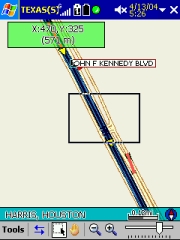
When you tap and drag an area on the screen PaPaGO will give you the details on the size of the rectangle. I have no idea why this feature is in here, but it's a nice gimmick.
top
Route Planning
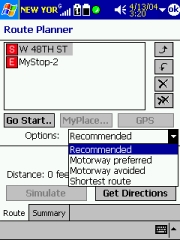
Planning a route is done a bit different than in other programs I tested. It is pretty much detached from the actual navigation. You have to have at least two items in the route plan, and you cannot enter places or locations easily.
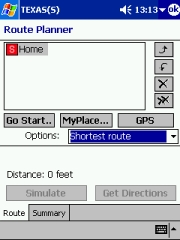 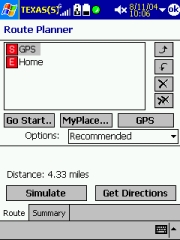
"MyPlace" is the equivalent of Favourites; "GPS" will add the current GPS position to the plan. PaPaGo cannot simply route "from where you are" to your destination – you always have to add the current GPS position or another start position to the plan. This is even more problematic when your GPS position is not yet fixed – no route planning will be possible until you have a fix.
"Go Start…" funny enough doesn't route you to the start point as you may expect but it will show the start position on the map. The same is true for other "Go" buttons – all they do is show that place on the map. It would be much better if that would actually start the navigation.
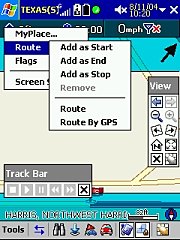
To add other places either tap and hold on the map or use the "Find…" button.
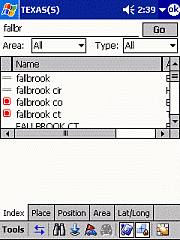 Finding Information Finding Information
Use the Tools > Find menu to add stops to your route or simply to find items. You have five options:
Index – a big dumpster of everything you can search for
Place – allows you to search for Points of Interest by type
Position – shows all POIs and Favourites in your proximity
Area – for finding counties and cities
Lat/Long – ah, I think this is self explanatory.
You may notice there is no feature for Intersections. In fact, there is also no way to find a house number.
The best you can do is to find the street and then go to the map and try to identify the place you want to go to.
Route Calculation Options
Most of the standard route calculation options are present. "Recommended" is equivalent to quickest route. Walking mode or "least turn" routing is not supported.
 Navigation Navigation
This is the weird part of the process. From the route planning screen there is no way to start the navigation. You need to go back to the map screen and tap the car button on the bottom toolbar to start the actual routing.
This button will remain inactive until you have fulfilled all the prerequisites – at least two items have to be selected into the planner, and you have to have a GPS fix.
If all is fine then PaPaGO starts the navigation.
The navigated track will automatically be recorded, so you can play it back later. (Make sure you clear the track from time to time).
Simulation Mode
As soon as two items are selected you can alternatively start the route simulation. It will go through the route at the speed that you specified in the GPS Track setting) and will do all the voice commands. Simulation will run in loops until you stop it from the track bar.
Note: You have to get directions before you can do a simulation and you cannot do a simulation when the GPS is enabled.
top
Driving
After you start the active navigation you have the option to maximize the map area by removing the title bar and the toolbar. To switch between the views tap and hold the map and select "Screen Switch")
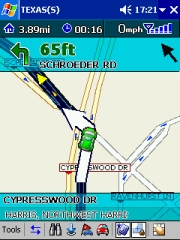 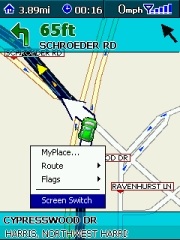
The screen shows all the relevant information . Note the arrow – it will always point directly to your destination.
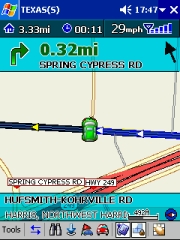 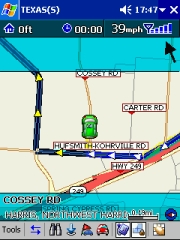
When you dare to deviate from the planned route PaPaGO will think a while and then start the recalculation. This process is pretty slow compared to other applications, and if you continue driving then you may run into the loop trap when it keeps recalculating because you are already somewhere else.
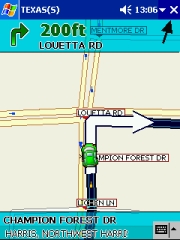 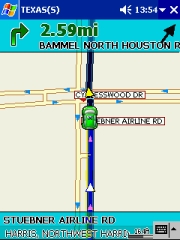
Close to the intersection the map zooms in, when you drive faster it zooms out again
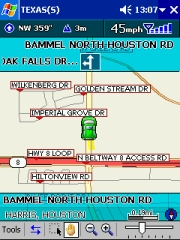 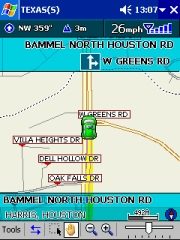
If you don't have a route planned then the program will show you the next upcoming intersection instead of the route instruction.
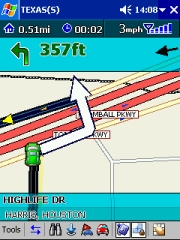 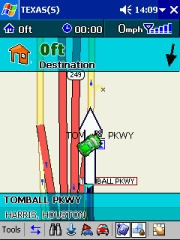
The program handles U-Turns well (even speaks it instead of the usual "Turn left, then turn left"), and it announces when you have reached your destination.
Voice Prompts
The voice prompts deserve their own topic. They are very detailed (81 WAV files, occupying 4.3 MB!) and they are recorded in a pleasant female voice. Since they are Wav files you can change them to your liking. Especially the rerouting voice files are prime candidates for remodelling – they are very long and get annoying pretty quick.
There is also some kind of proximity alert included – whenever you approach one of the "MyPlace" (favourite) items the program will say "Approaching a favourite place". Unfortunately it will not tell you which of these places it has found, but since it is one of your favourites you may know that anyhow. (then why do you need to know you are approaching it? Whatever…)
There is also a Wav file for "Speeding Detection camera in 500 meters" but that seemed to have no effect in my maps. Maybe the camera places are included in the European and asian maps.
 top top
Problems Encountered
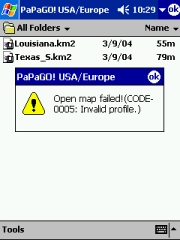
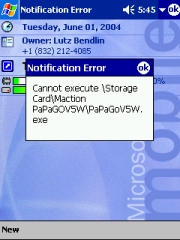
You may see this error message when you had to restore your Pocket PC, and just wanted to start PaPaGO directly from the Storage Card. Sorry, this trick doesn't work yet. You still need to re-install PaPaGO to the same location, and then the maps will open fine.
This is a strange one. For whatever reason PaPaGO registers to WakeUp (ie the moment when the power button is pressed) when it is running.
When you power down the Pocket PC with PaPaGO running this either results in the Pocket PC locking up when you power it on again, or in this message. If you have to soft reset the Pocket PC you will get this error message as well.
What's the lesson from this? You should always exit the application (Tools > Exit) before you switch off the Pocket PC.
 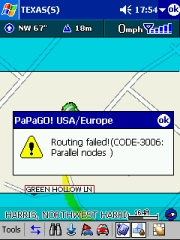
The map data is not always complete, and some routes go through areas where PaPaGO gets lost and panics. There's not much you can do about it, just hope for newer maps to be released over time.
top
Conclusion
From the very beginning I liked PaPaGO. Both the UI and the functionality did appeal to me. Even when I started to discover the shortfalls (especially in the address search area) I still wanted to give the application credit for doing so many things right. PaPaGO is not yet a major contestant in the european or american market, but with its widespread asian map coverage it is definitely an option when you are traveling to those countries where the major players fail to provide maps.
Pro's
- Excellent map coverage in Asia
- Well designed User Interface
- Downloadable maps
- Very detailed voice prompts
Con's
- No routing by house number or street intersection
- Map data has errors, causing some routing to fail
- Slow route recalculation
|